
Views and Sheets · Create
Create Views
Create many plan views at once by view type and level, or part plans with scope boxes.
When to use it
Use this when a new project (or a new phase of documentation) needs a full set of floor plans, or cropped part plans from scope boxes.
Why it exists
Duplicating plans by hand misses levels and names them inconsistently. This tool builds the matrix of view type × level (or scope box) with naming rules.
How to use it
-
Open Create Views
On the ✚ Annon App tab, open Create and choose Create Views.
-
Choose Plans or Part plans
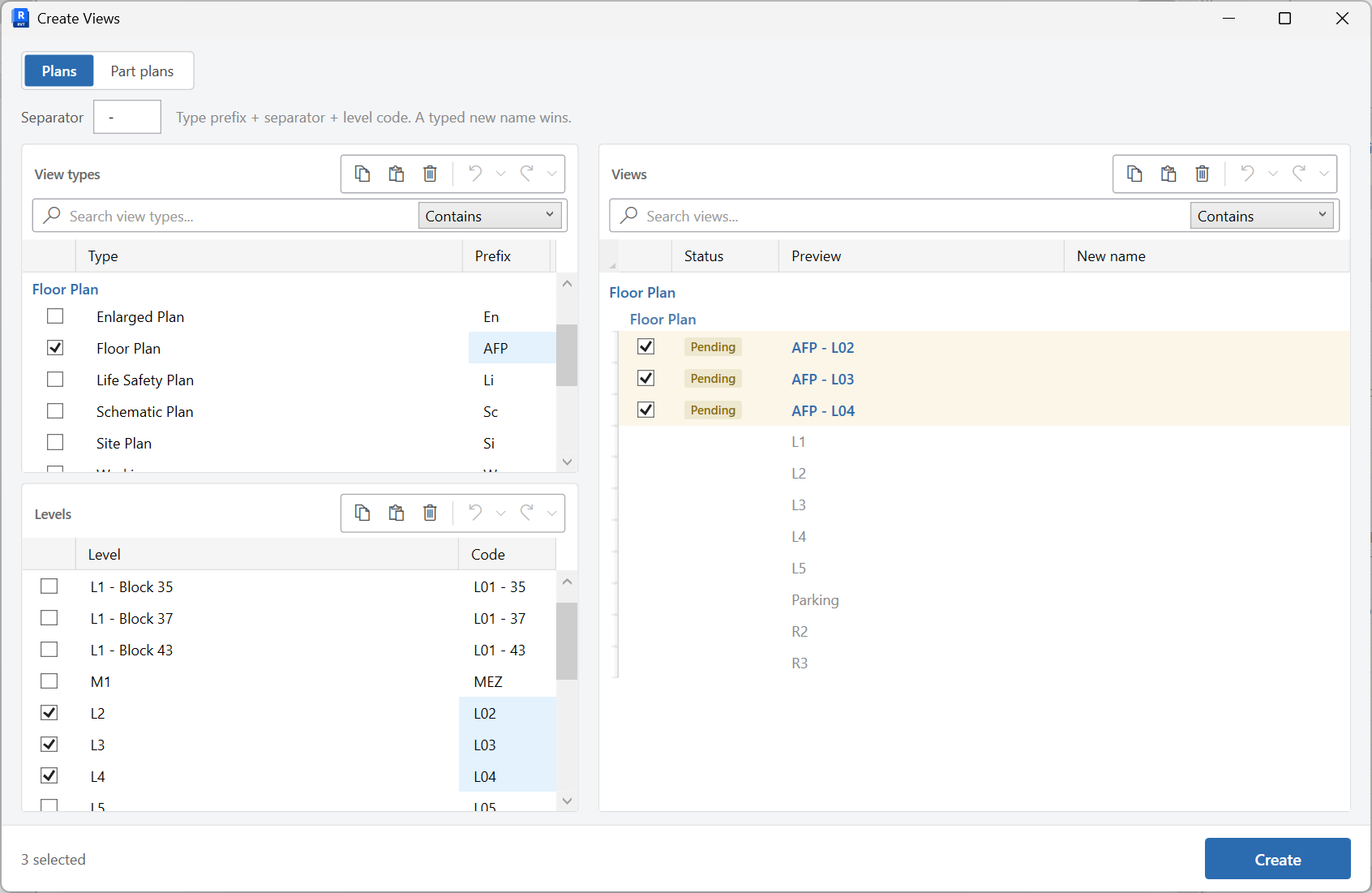
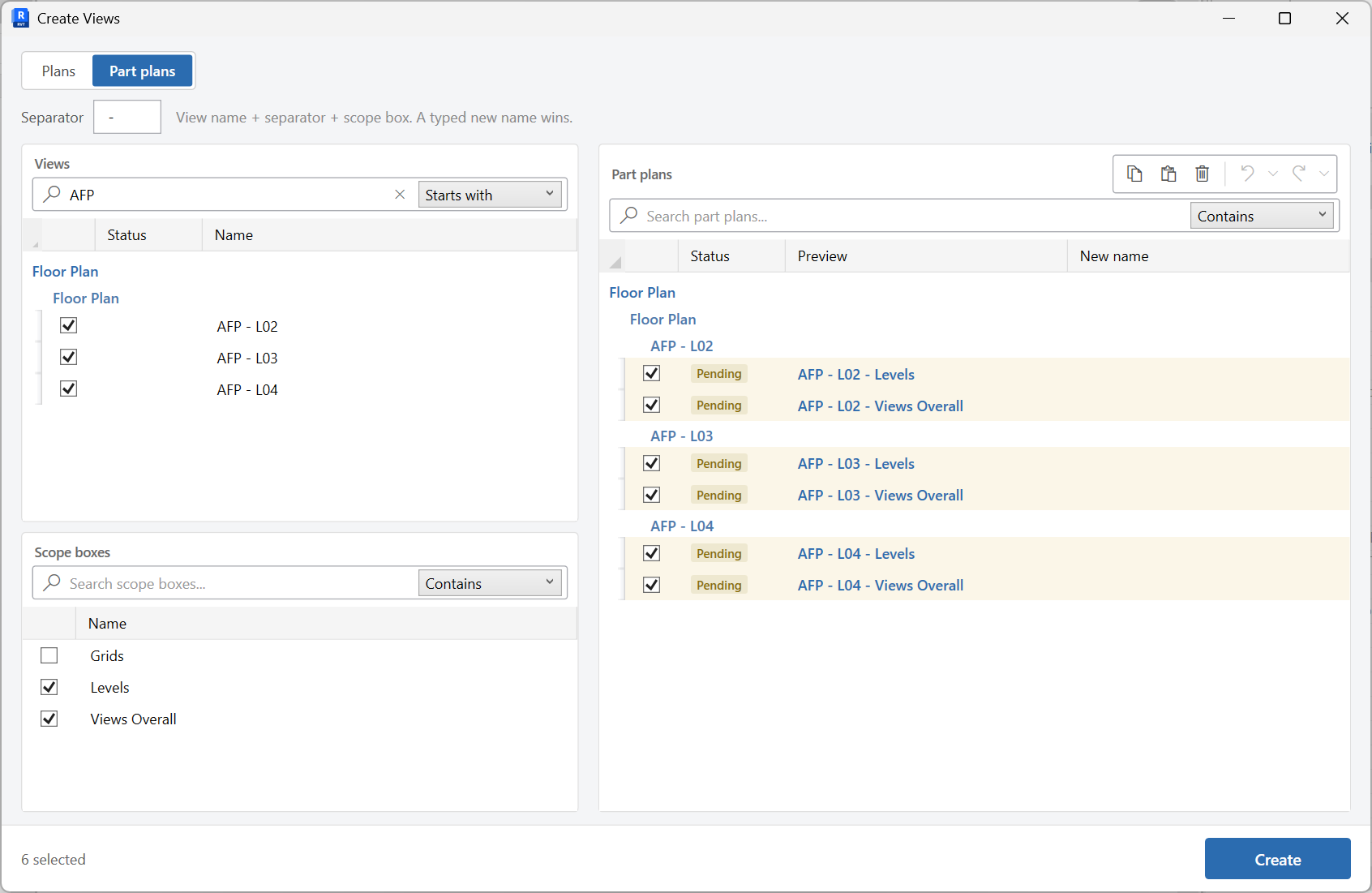
Plans builds views by view type and level. Part plans uses scope boxes for cropped plans.
-
Set naming rules
Use type prefix, separator, and level code as needed. The grid flags duplicate names as Pending or Duplicate.
-
Select rows and create
Resolve duplicates, check the rows you want, then create the views.
Keep in mind
- Assign templates afterward with Assign View Templates.
- Place the new views with Views To Sheets.
Related tools
 Create Sheets
Create sheets from a grid you can edit, paste into, or fill from Excel, including extra sheet parameters.
Create Sheets
Create sheets from a grid you can edit, paste into, or fill from Excel, including extra sheet parameters.
 Views To Sheets
Place views onto sheets in a two-pane workspace, then Place to update the sheets.
Views To Sheets
Place views onto sheets in a two-pane workspace, then Place to update the sheets.
 Assign View Templates
Assign view templates to views by view type, then apply in bulk.
Assign View Templates
Assign view templates to views by view type, then apply in bulk.