
Views and Sheets · Create
Create Sheets
Create sheets from a grid you can edit, paste into, or fill from Excel, including extra sheet parameters.
When to use it
Use this when a drawing list already exists in Excel or when you need a large sheet set created with numbers, names, and title-block parameters filled in.
Why it exists
Creating sheets one at a time in Revit is where numbering mistakes start. A grid with duplicate detection catches them before the set exists.
How to use it
-
Open Create Sheets
On the ✚ Annon App tab, open Create and choose Create Sheets.
-
Build the list
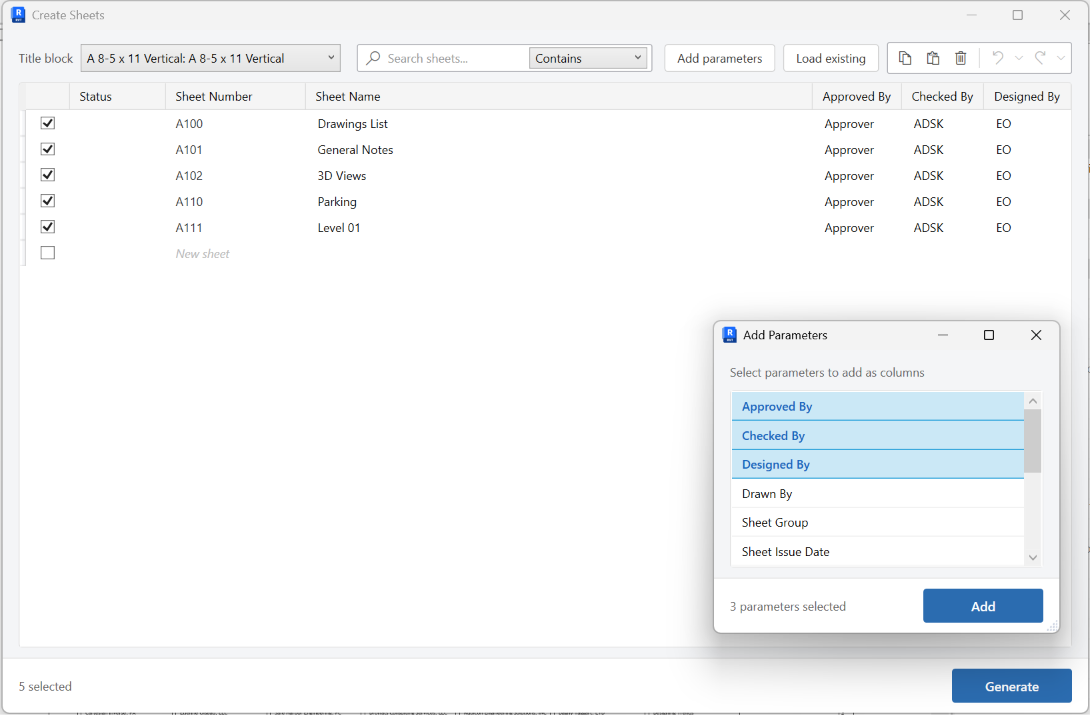
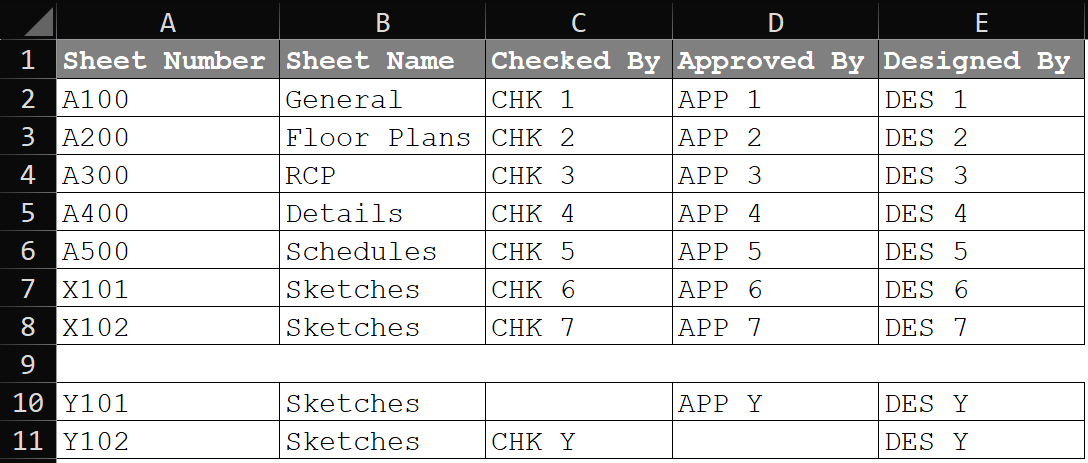
Type sheet numbers and names, insert rows, or paste / fill from Excel.
-
Add parameter columns
Add sheet parameters you want filled at creation (designed by, checked by, and similar). Right-click a header to remove a column.
-
Choose a title block
Pick the title block family/type for new sheets.
-
Generate
Fix duplicate or missing numbers the grid flags, then generate the selected rows.
Keep in mind
- To change numbers and parameters on sheets that already exist, use Revalue Sheets.
- Place views after the sheets exist with Views To Sheets.


