
Views and Sheets · Place
Views To Sheets
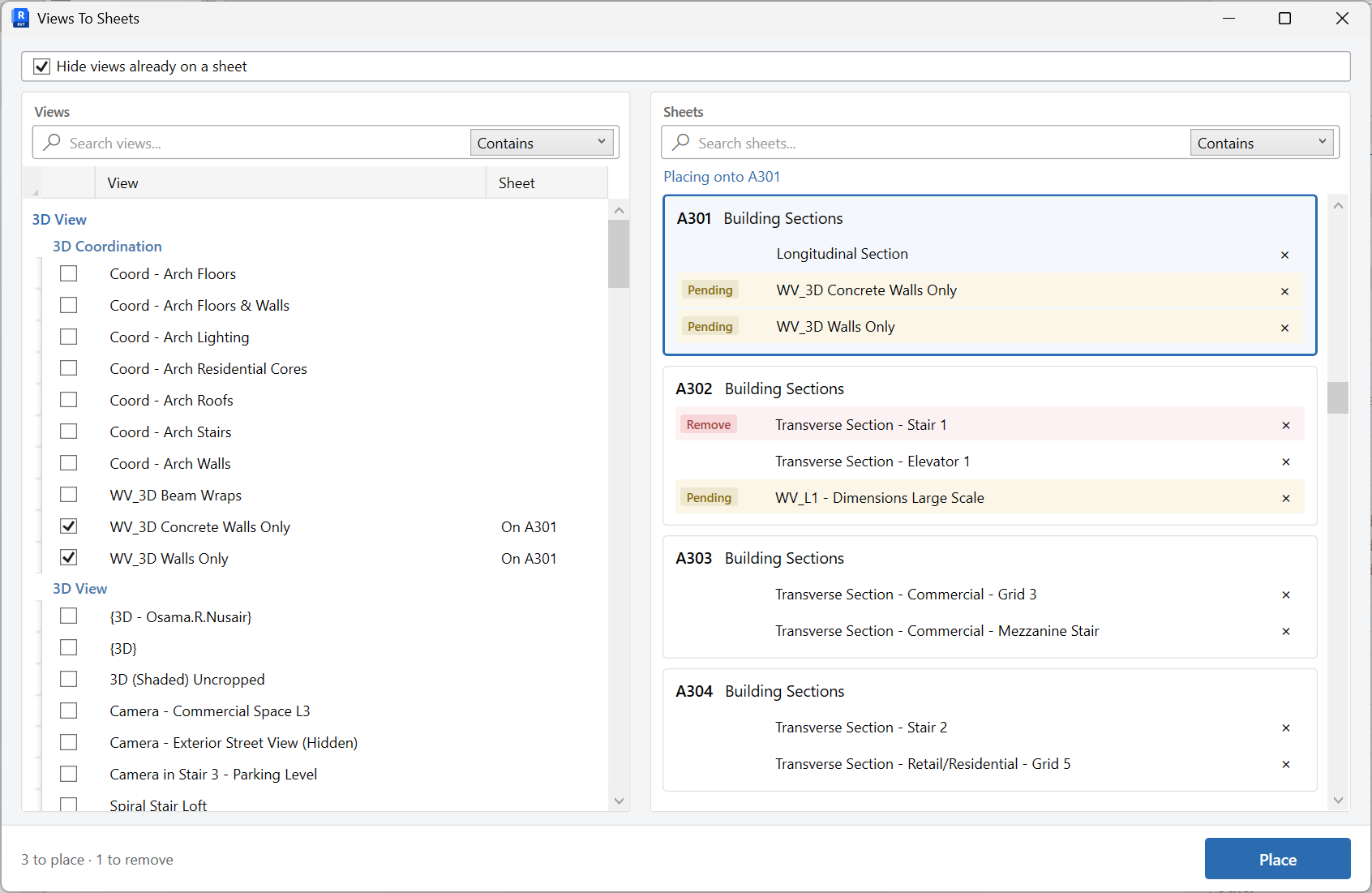
Place views onto sheets in a two-pane workspace, then Place to update the sheets.
When to use it
Use this when views and sheets already exist and you need to pack a set - plans onto plan sheets, details onto detail sheets - without opening every sheet.
Why it exists
Dragging views from the browser onto sheets does not scale. A two-pane assigner lets you map the set, hide views already placed, and commit once.
How to use it
-
Open Views To Sheets
On the ✚ Annon App tab, open Place and choose Views To Sheets.
-
Assign views to sheets
Use the two panes to map views onto destination sheets. Optionally hide views that are already on a sheet so you only see what is left.
-
Place
Write the viewports onto the sheets. Align them afterward with Viewport Placement if they should match a reference sheet.
Keep in mind
- This places views; it does not create missing sheets or views. Create those first.
- Viewport location on the sheet is refined with Viewport Placement.
Related tools
 Viewport Placement
Align viewports across sheets to match a reference viewport, optionally matching crop or viewport type.
Viewport Placement
Align viewports across sheets to match a reference viewport, optionally matching crop or viewport type.
 Create Sheets
Create sheets from a grid you can edit, paste into, or fill from Excel, including extra sheet parameters.
Create Sheets
Create sheets from a grid you can edit, paste into, or fill from Excel, including extra sheet parameters.
 Create Views
Create many plan views at once by view type and level, or part plans with scope boxes.
Create Views
Create many plan views at once by view type and level, or part plans with scope boxes.