
Coordination
Site
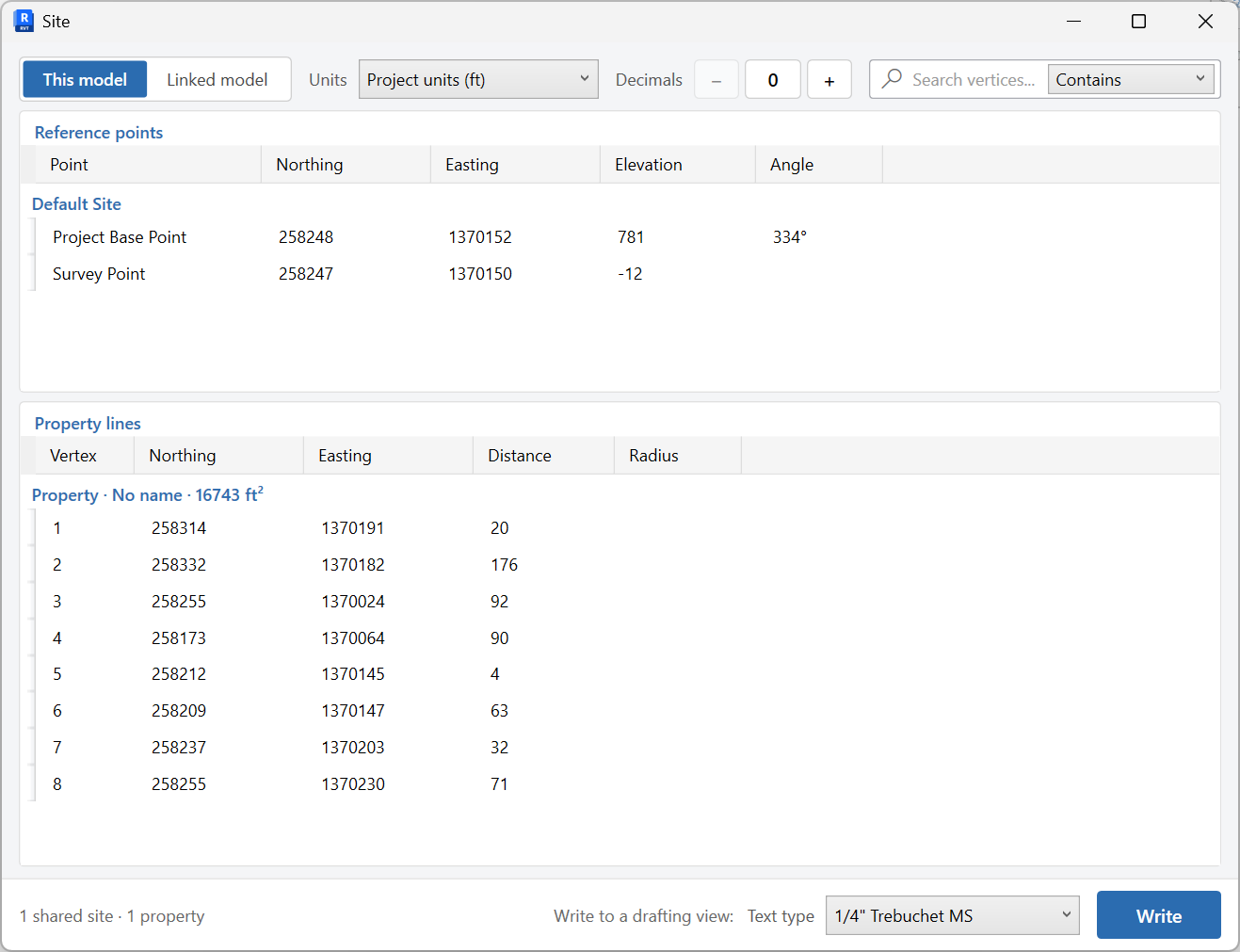
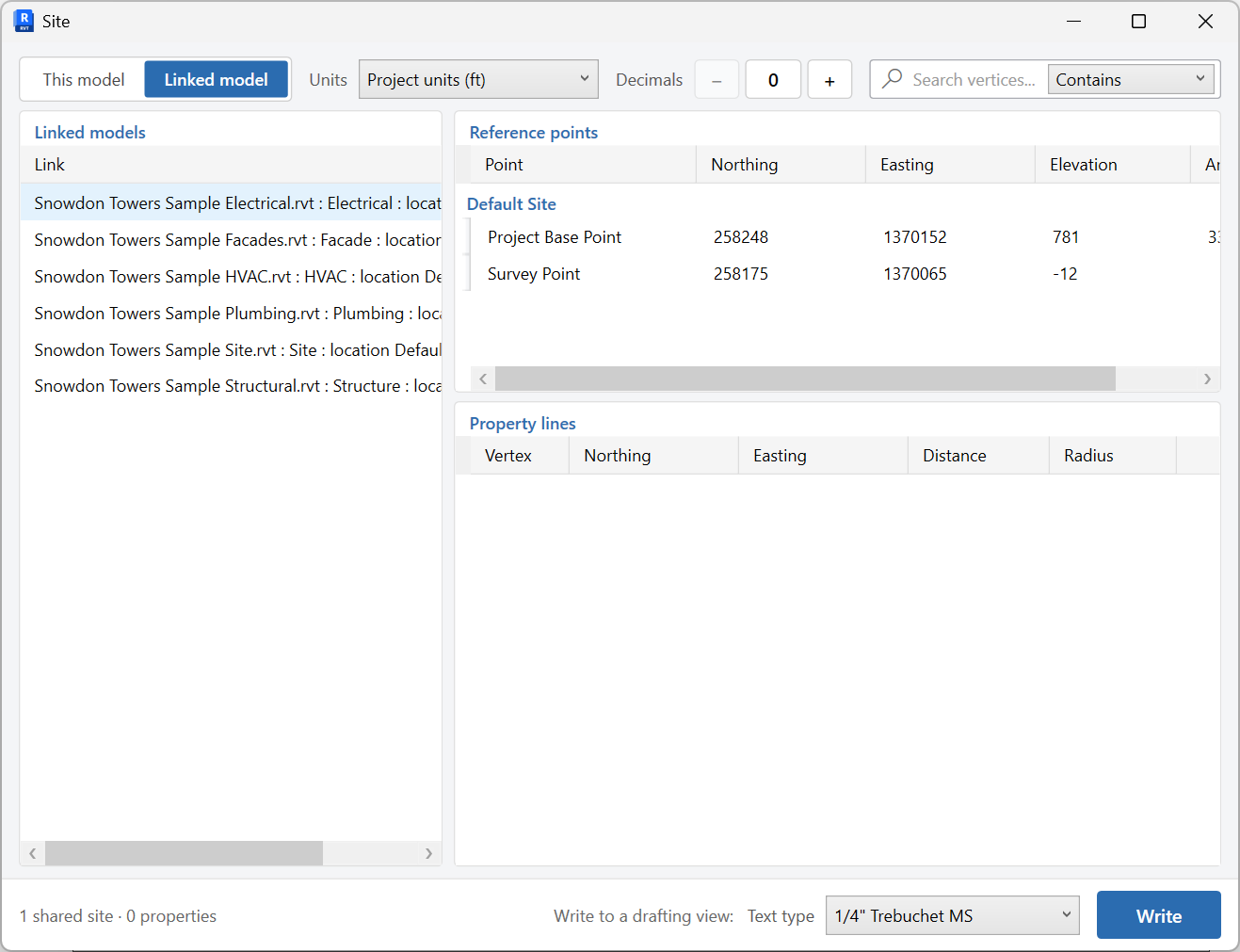
Report property line vertices, Project Base Point, Survey Point, and shared sites from this model or a linked model.
When to use it
Use this when you need a coordinate report for civil, survey, or BIM coordination - or when you want a Property Line Schedule written to a drafting view.
Why it exists
Shared coordinates are easy to misread in Revit. This tool puts vertices, base/survey points, and shared sites in grids you can copy, with units and decimals you control.
How to use it
-
Open Site
On the ✚ Annon App tab, click Site.
-
Choose the source
Use This model or Linked model depending on where the coordinates live.
-
Set units and decimals
Match the report to the civil or survey format you need.
-
Read the grids
Review property vertices, Project Base Point, Survey Point, and shared sites. Copy from the grid if you are pasting into Excel.
-
Write a drafting view (optional)
Pick a text type and click Write to create a Property Line Schedule drafting view in the project.
Keep in mind
- This is a report and drafting-view writer - it does not acquire or publish coordinates by itself.
- Export Navisworks files per site with Export Shared Sites.

