
Manage · Worksets
Assign Worksets
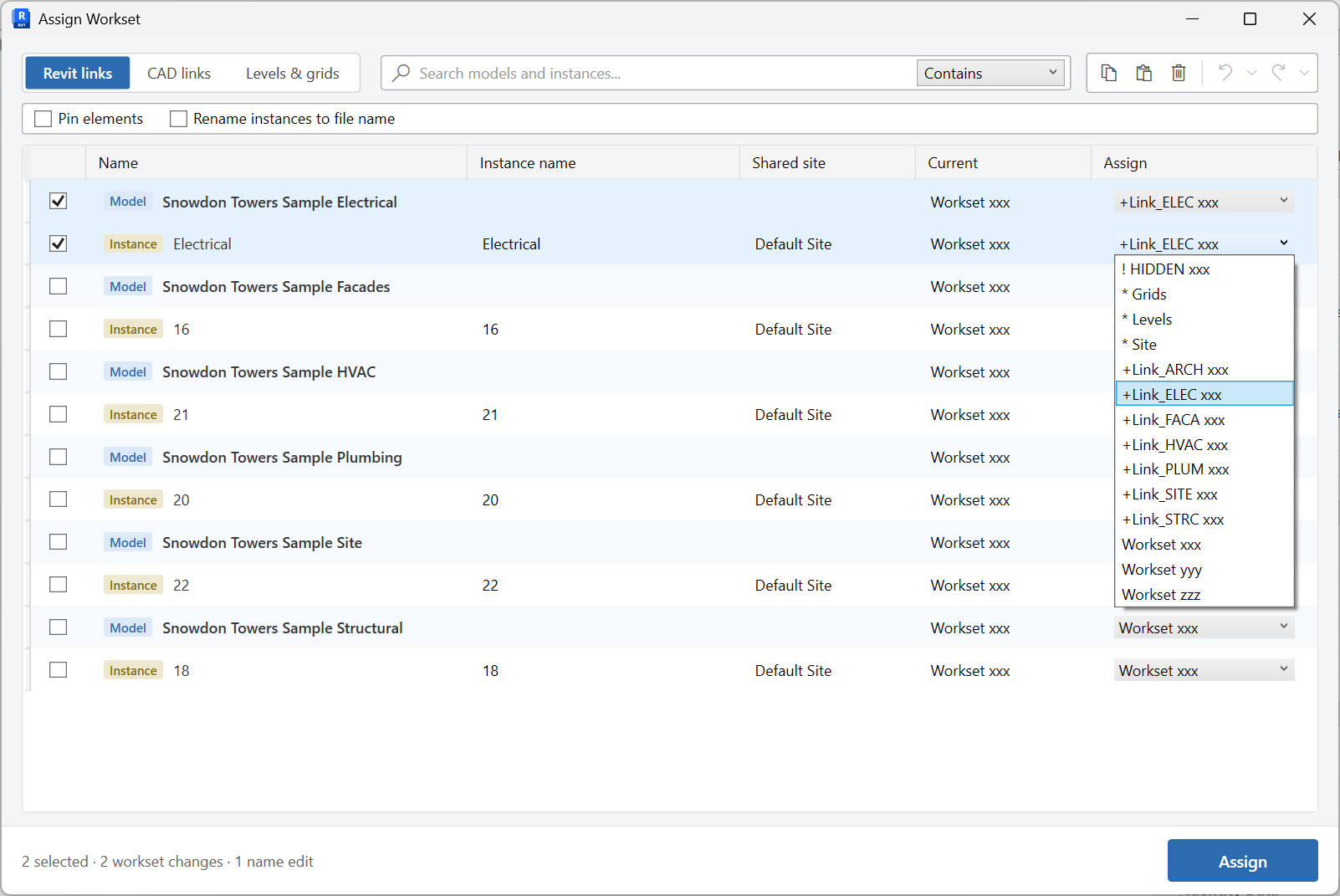
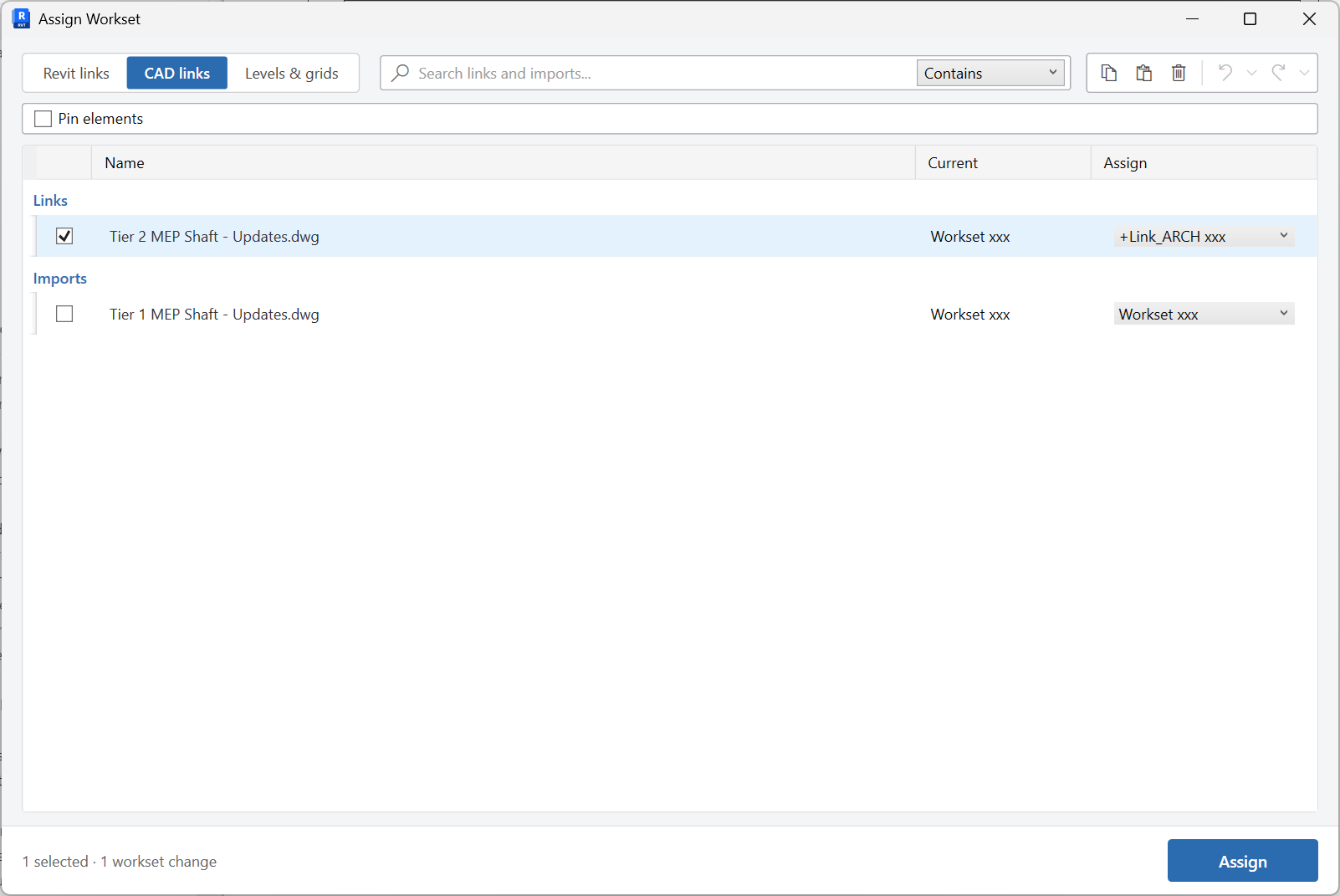
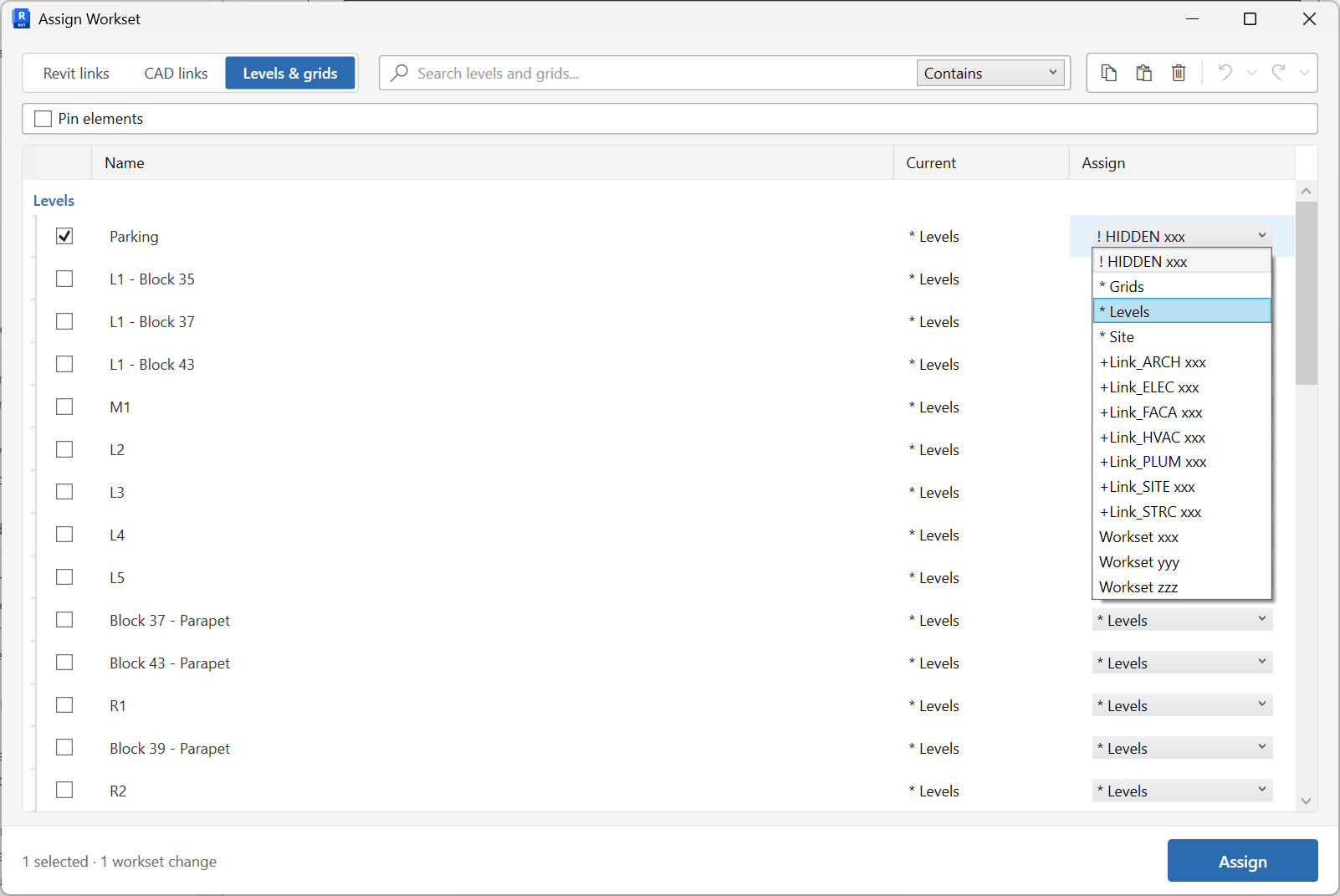
Assign worksets to Revit links, CAD links, or levels and grids, with optional pinning and link renaming.
When to use it
Use this after linking consultant models, after CAD underlays, or when levels and grids are still on the wrong workset.
Why it exists
Links and datums on the wrong workset cause checkout fights and make it hard to close worksets you are not editing.
How to use it
-
Open Assign Worksets
On the ✚ Annon App tab, open Worksets and choose Assign Worksets.
-
Pick a tab
Work on Revit links, CAD links, or Levels & grids.
-
Assign in the grid
Search, then set the workset for each row. Optionally pin elements, and rename link instances to match the file name (duplicates get -1, -2, and so on).
-
Commit
Apply the assignments. Repeat on the other tabs if needed.
Keep in mind
- Pinning is useful for links and datums you do not want accidentally moved.
- Imported CAD (not linked) is cleaned with Purge DWG.


