
Manage · Purge
Purge Sheets and Views
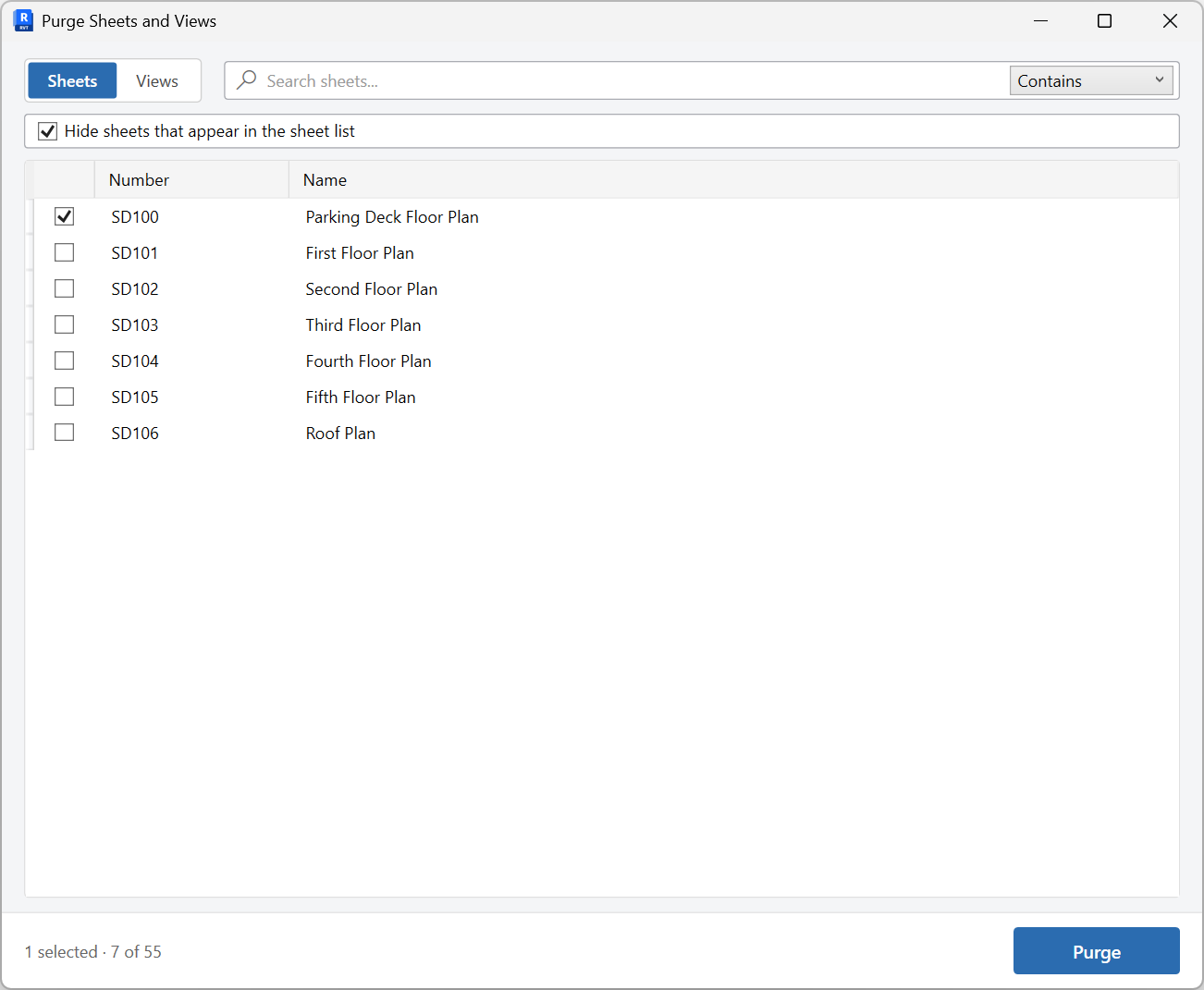
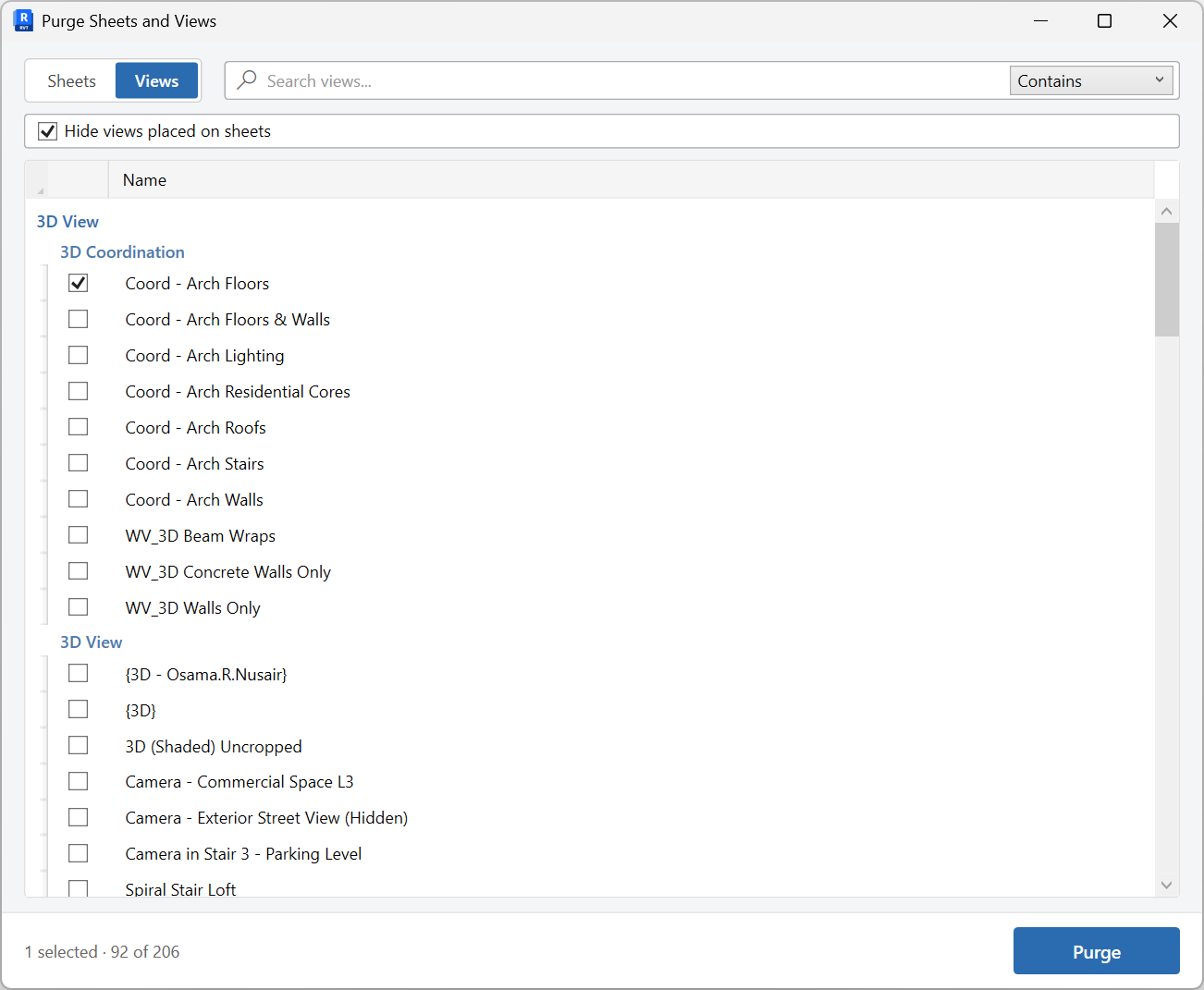
Review and purge project sheets and views from one window, with a tab for each list.
When to use it
Use this when a model is full of working views, duplicate sheets, or views that never made it onto a sheet set.
Why it exists
Orphan views and leftover sheets inflate the browser, slow opens, and hide the views that actually belong on the drawing set.
How to use it
-
Open Purge Sheets and Views
On the ✚ Annon App tab, open Purge and choose Purge Sheets and Views.
-
Switch tabs
Use Sheets or Views. Each tab refreshes when you select it, so counts stay current after you purge the other list.
-
Search and select
Find items by name or number, then check the rows you want to remove.
-
Purge
Delete the selected sheets or views. Repeat on the other tab if both lists need cleanup.
Keep in mind
- This replaces the older separate Unused Sheets and Unused Views commands.
- Views placed on sheets still appear in the Views list - check placement before you purge.
Related tools
 Purge View Setup
Find and remove unused view templates and view filters in one window.
Purge View Setup
Find and remove unused view templates and view filters in one window.
 Create Sheets
Create sheets from a grid you can edit, paste into, or fill from Excel, including extra sheet parameters.
Create Sheets
Create sheets from a grid you can edit, paste into, or fill from Excel, including extra sheet parameters.
 Views To Sheets
Place views onto sheets in a two-pane workspace, then Place to update the sheets.
Views To Sheets
Place views onto sheets in a two-pane workspace, then Place to update the sheets.