
Annotations and Selection · Levels Plus
Levels Head
Show or hide level heads on the left, right, both, or none, for the selection or the view.
When to use it
Use this on elevations and sections when heads should appear only on one side, or when a working view should hide them.
Why it exists
The same reason as grid bubbles: one rule applied to the selection or the whole view, instead of clicking every head.
How to use it
-
Open Levels Head
On the ✚ Annon App tab, open Levels Plus and choose Levels Head.
-
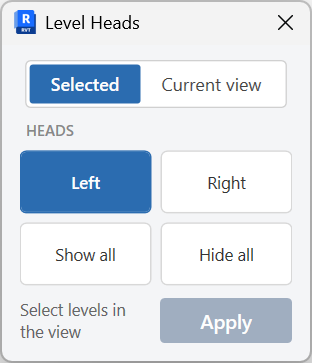
Choose the set
Selected levels or all levels in the current view.
-
Pick visibility
Left, right, show all, or hide all.
-
Apply
Update level heads in the view.
Keep in mind
- Ribbon label is Levels Head (singular).
- Copy extents across views with Levels Match.


