
Annotations and Selection · Grids Plus
Grids Bubble
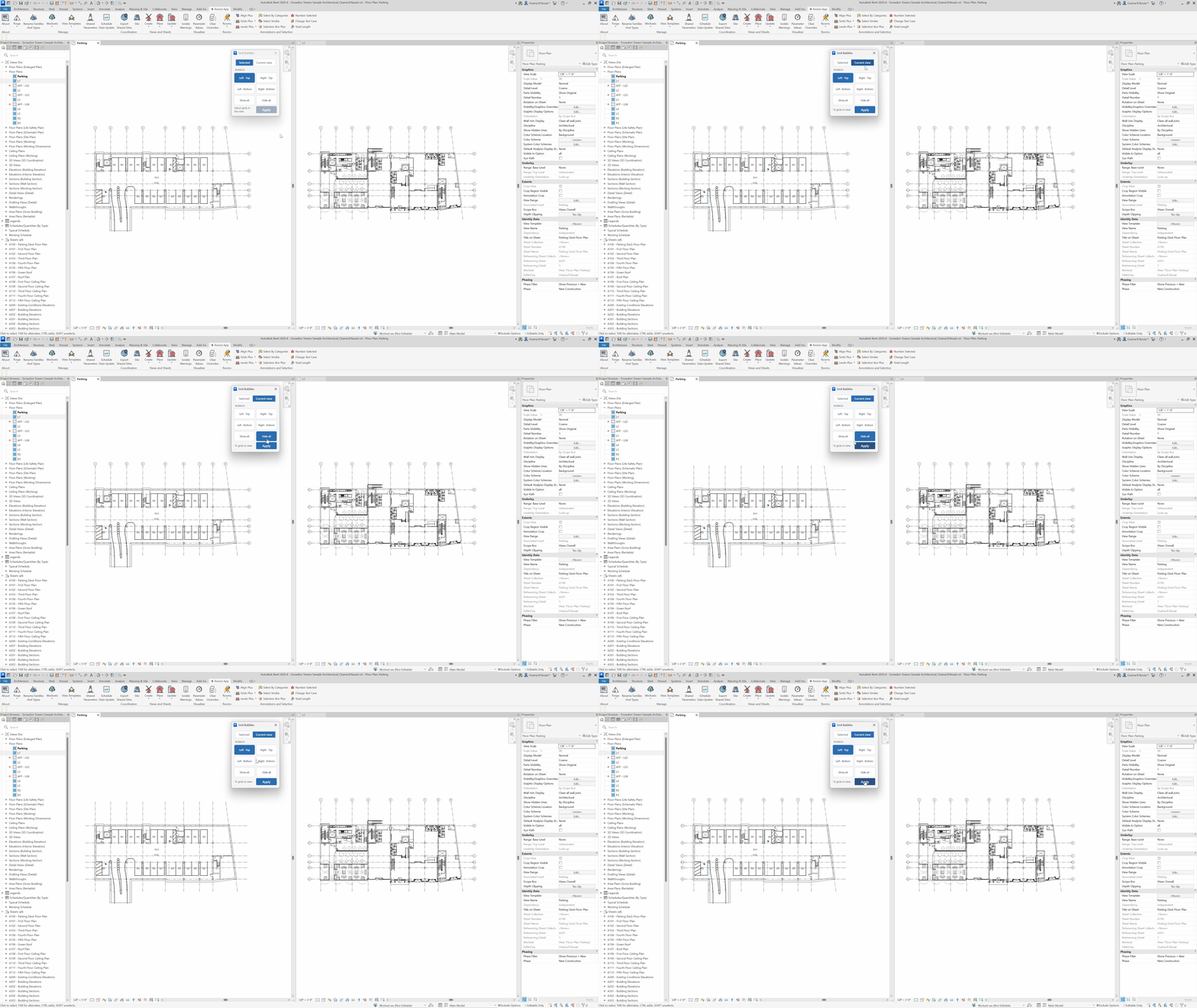
Show or hide grid bubbles at each end, for the current selection or all grids in the view.
When to use it
Use this when a plan should show bubbles only on one side, or when a working view is noisy with bubbles at both ends.
Why it exists
Toggling each grid end in the canvas is slow and inconsistent. This applies the same end rule to the selection or the whole view.
How to use it
-
Open Grids Bubble
On the ✚ Annon App tab, open Grids Plus and choose Grids Bubble.
-
Choose the set
Work on selected grids or all grids in the current view.
-
Pick ends
Show end 1, end 2, both, or none.
-
Apply
Update bubble visibility in the view.
Keep in mind
- This is per view. Matching extents across views is Grids Match.
- Level heads have the same idea in Levels Head.
Related tools
 Grids Match
Copy grid extents from a source view to other views, optionally including grid dimensions.
Grids Match
Copy grid extents from a source view to other views, optionally including grid dimensions.
 Grids Dimensions
Place dimensions between parallel grids for the selection or the current view.
Grids Dimensions
Place dimensions between parallel grids for the selection or the current view.
 Levels Head
Show or hide level heads on the left, right, both, or none, for the selection or the view.
Levels Head
Show or hide level heads on the left, right, both, or none, for the selection or the view.