
Rooms
Create Components
Create floors or ceilings from room finish parameters when the finish value matches a type name or Type Mark.
When to use it
Use this after rooms and finishes are in the model and you need floors or ceilings generated from those finishes instead of tracing every room.
Why it exists
Finish schedules already know the floor and ceiling types. Matching finish text to type name or Type Mark turns that data into geometry.
How to use it
-
Open Create Components
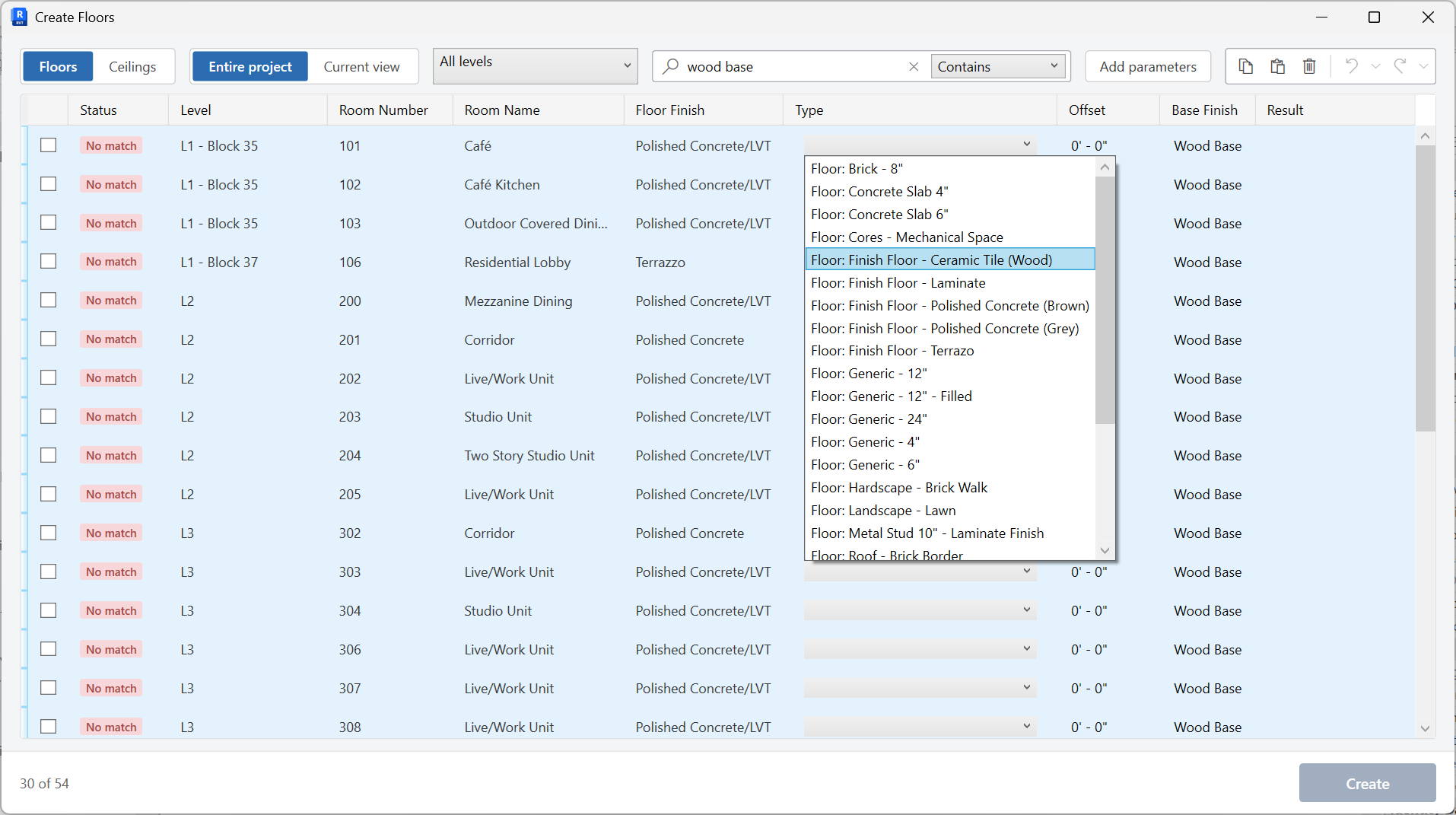
On the ✚ Annon App tab, open Rooms and choose Create Components. The window is modeless (Create Floors) so you can keep working in Revit.
-
Choose Floors or Ceilings
Switch modes depending on which finish you are generating from.
-
Set scope
Work in the Current view or the Entire project, and optionally filter by level.
-
Check the match
The finish value should match the floor or ceiling type name or Type Mark. The grid shows Match / No match. Add parameter columns if you need more context; right-click a header to remove one.
-
Create
Generate components. Status badges show Created, Failed, or Skipped.
Keep in mind
- Fix finish spelling (or Type Marks) before you create - No match rows will not generate geometry.
- This tool lives under the Rooms pulldown on the ribbon.

