
Visualizer
Parameter Values
Browse elements by parameter value in this view or the entire project, then select, isolate, color, or edit those values.
When to use it
Use this to find every wall with an unexpected top constraint, every door with a blank mark, or any parameter that should be consistent before you issue.
Why it exists
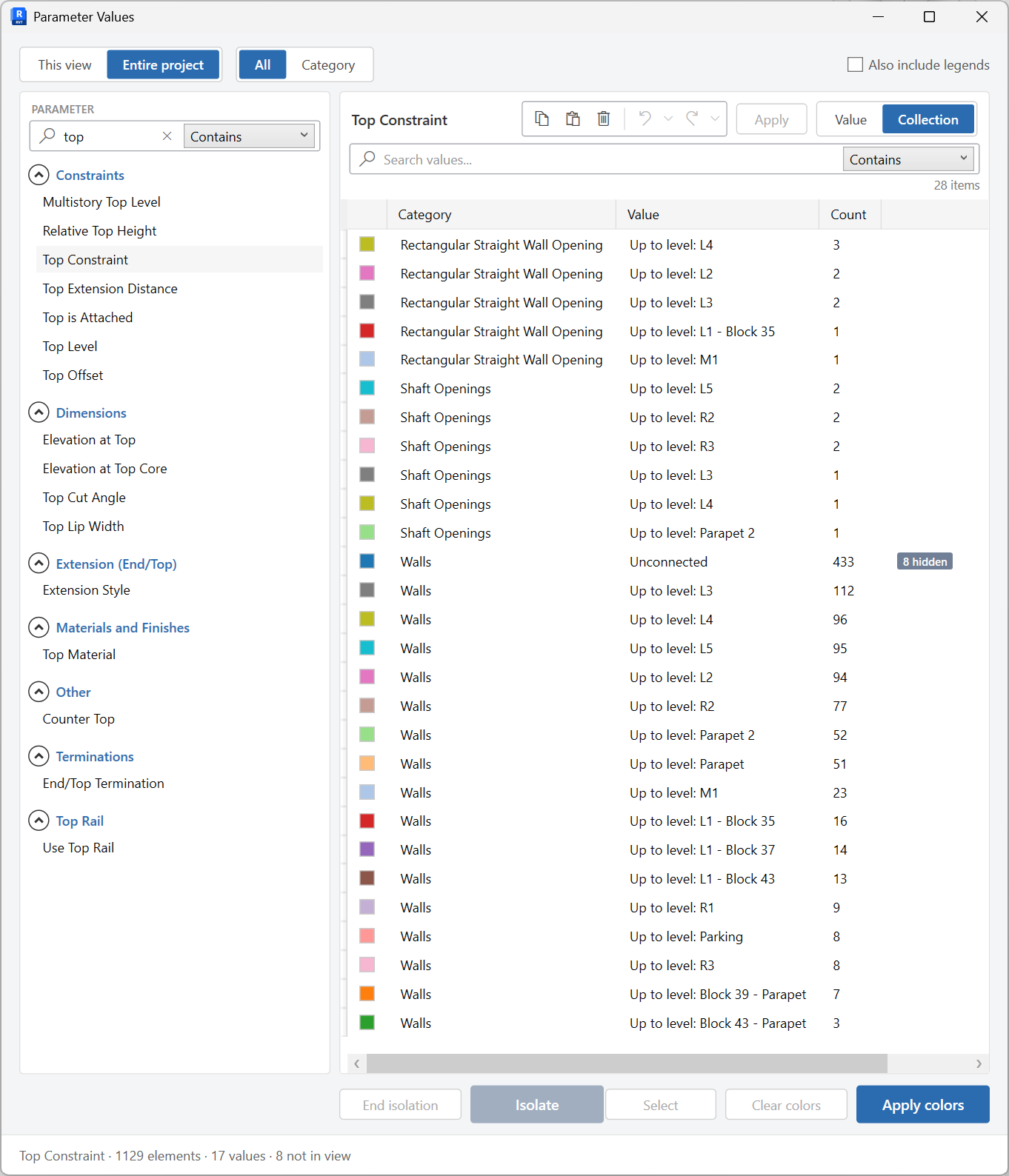
Filters and schedules answer one question at a time. Parameter Values lets you pick a parameter, see every distinct value with counts, then act on the buckets.
How to use it
-
Open Parameter Values
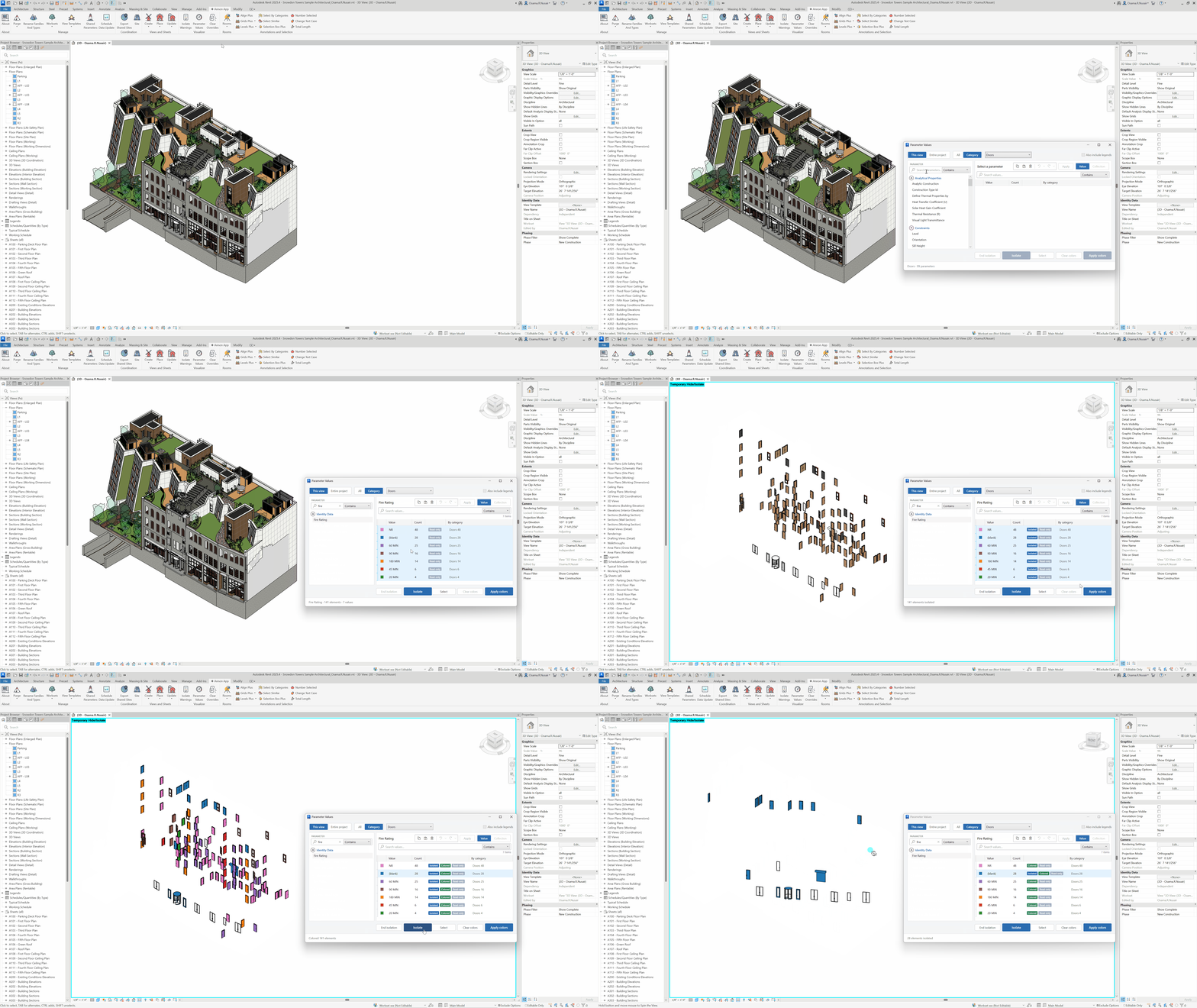
On the ✚ Annon App tab, click Parameter Values. (Older docs called this Override By Value - it is the same command, expanded.)
-
Choose where
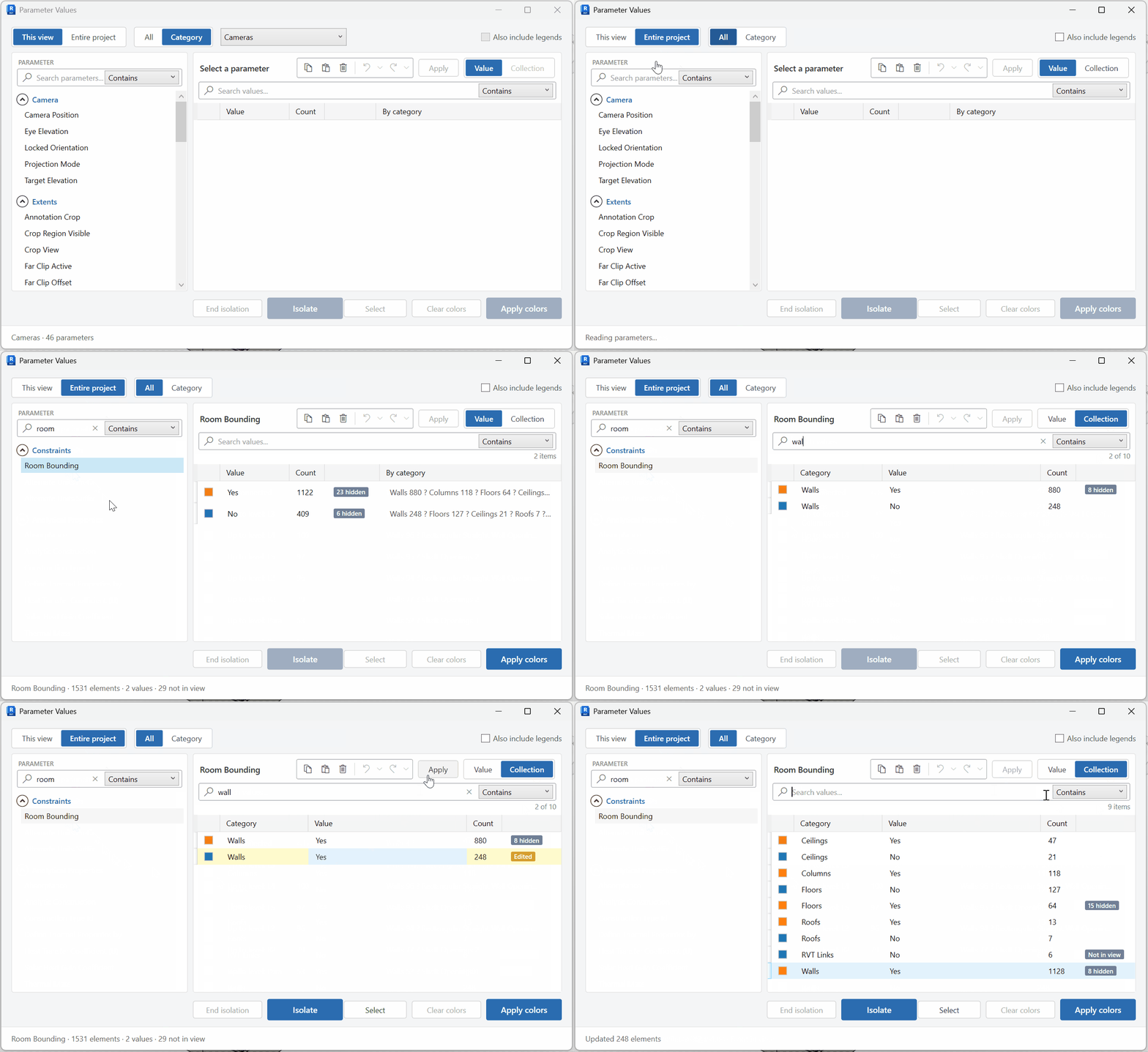
Scope to This view or Entire project. Entire project can include legends if you enable that option.
-
Browse a parameter
Look at all parameters, or limit by category with the category picker, then pick the parameter.
-
Work the values grid
Group by Value or Collection (by category). Select rows, then Select, Isolate / End isolation, Apply colors / Clear colors.
-
Edit and Apply (optional)
Change values in the grid and Apply to write them back to the model. Use the grid edit toolbar for copy, paste, and undo.
Keep in mind
- Coloring uses graphic overrides. Reset the view with Clear Overrides when the audit is done.
- For schedule-shaped editing of one schedule, Schedule Data Update may be faster.
Related tools
 Isolate Warnings
Review model warnings, then select, temporarily isolate, or color the failing elements in the active view.
Isolate Warnings
Review model warnings, then select, temporarily isolate, or color the failing elements in the active view.
 Clear Overrides
Clear graphic overrides on all elements in the active graphical view.
Clear Overrides
Clear graphic overrides on all elements in the active graphical view.
 Schedule Data Update
Open a Revit schedule in an editable grid, change values with copy, paste, and undo, then Apply them back to the model.
Schedule Data Update
Open a Revit schedule in an editable grid, change values with copy, paste, and undo, then Apply them back to the model.