
Manage · View Templates
Rename View Templates
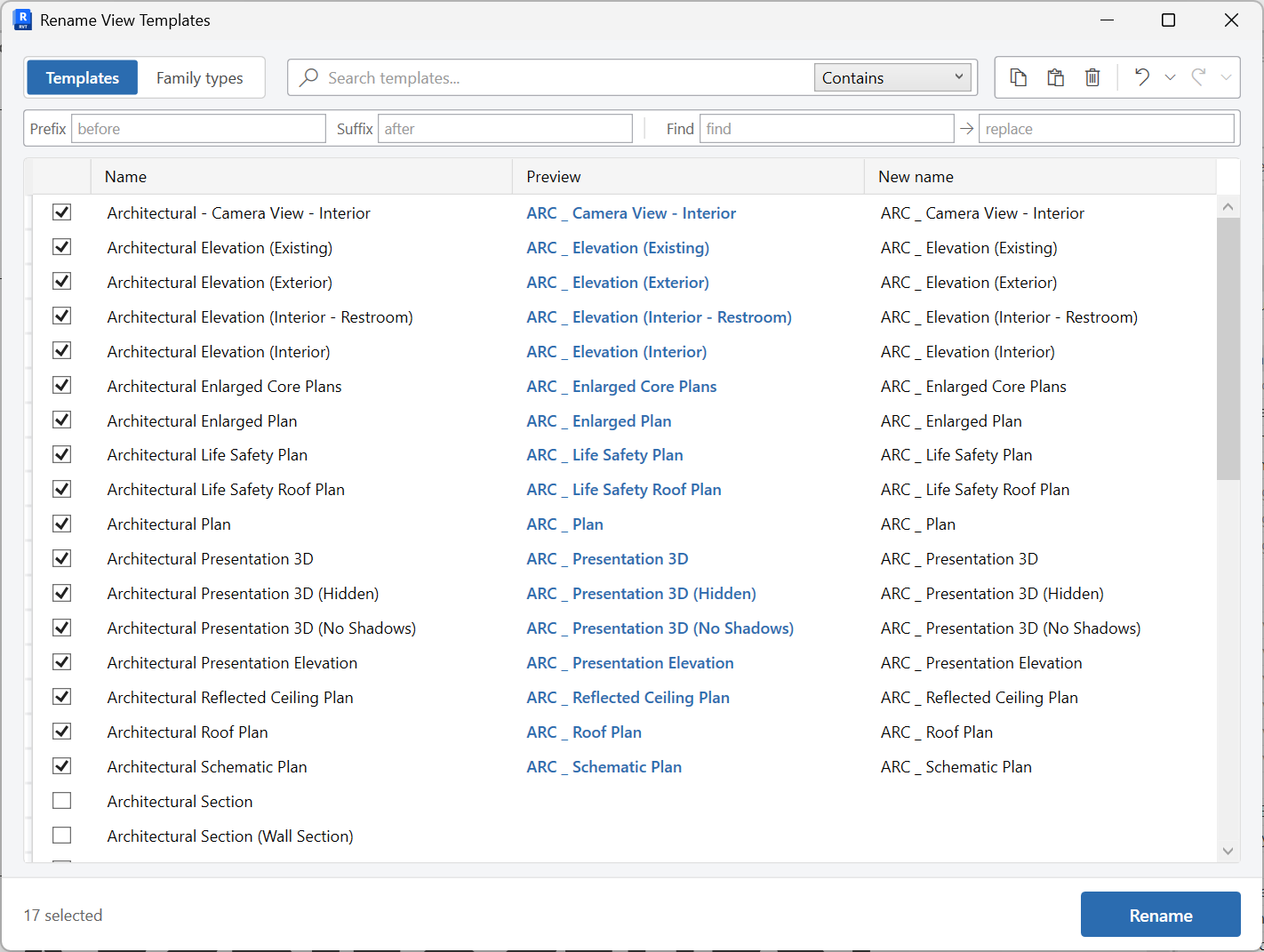
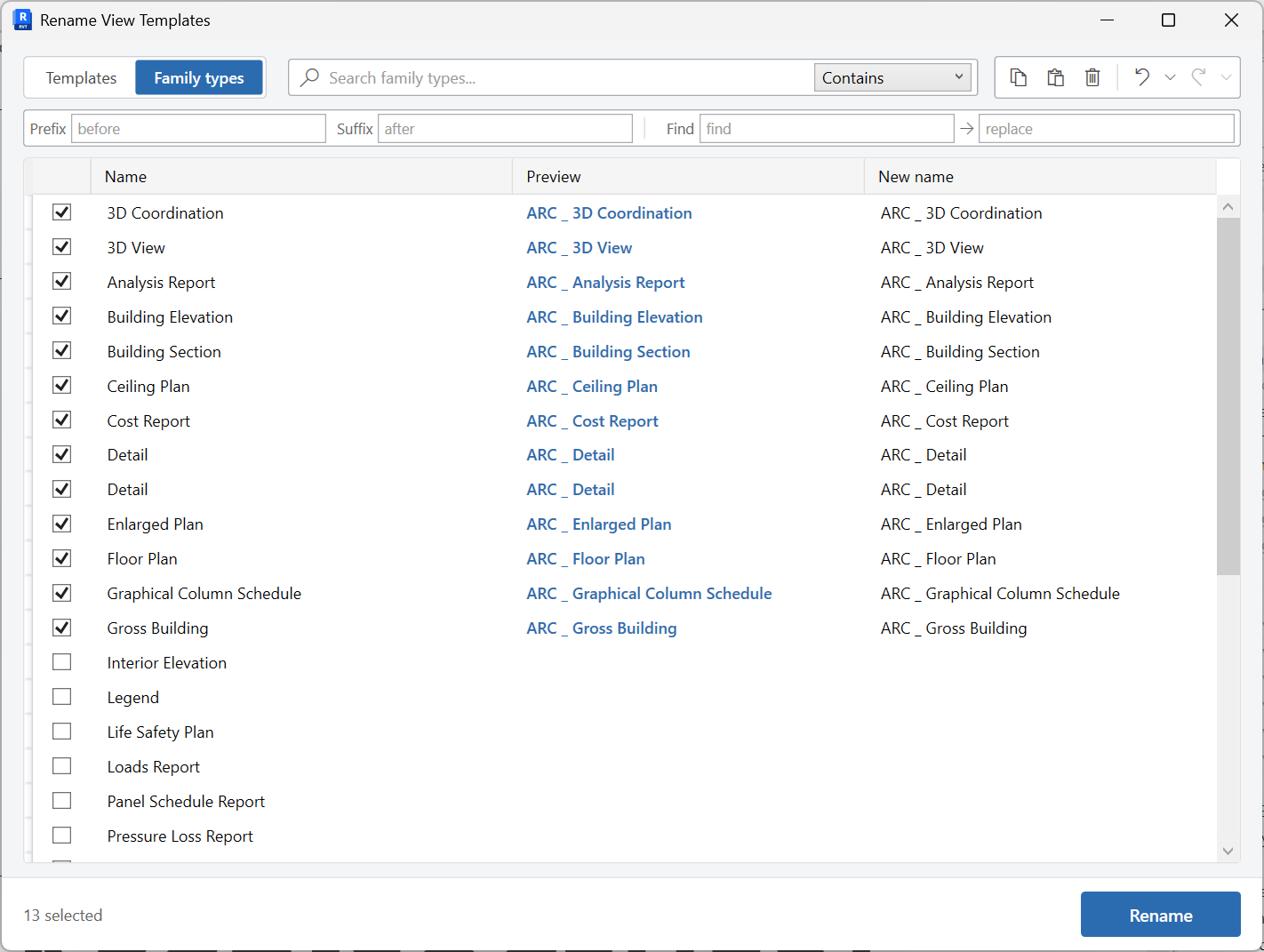
Rename view templates or view family types from a searchable grid.
When to use it
Use this when template names drifted from the standard, or when view family types (plan types, section types) need a consistent prefix.
Why it exists
People apply the template they can find. If names are messy, the wrong graphics get locked onto views.
How to use it
-
Open Rename View Templates
On the ✚ Annon App tab, open View Templates and choose Rename View Templates.
-
Choose templates or view family types
The grid covers view templates and view family types so you can standardize both.
-
Edit new names
Search, type the new names, then apply the rename.
Keep in mind
- Renaming a template does not change which views it is assigned to - only the name.
- Pair this with Assign View Templates after a standards pass.


