
Annotations and Selection
Selection Box Plus
Create a 3D section box around the current selection, including linked elements, with an optional offset.
When to use it
Use this when you need a 3D crop around a selected cluster - rooms, a clash cluster, linked equipment - without drawing a section box by hand.
Why it exists
Native Selection Box ignores links and is easy to overshoot. This includes linked elements, lets you offset in project units, and can target an existing 3D view or create a new one.
How to use it
-
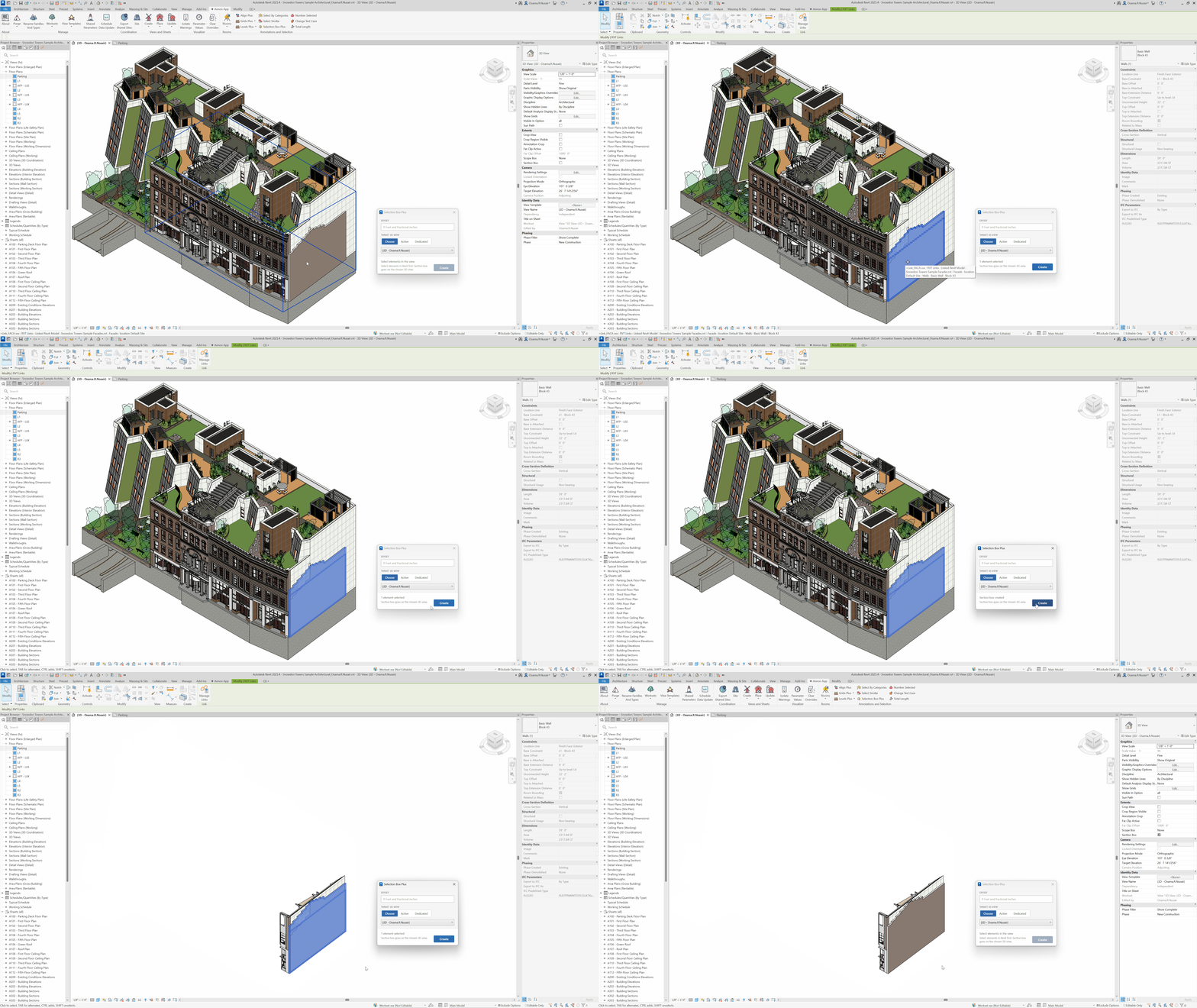
Select the elements
Include linked elements if they should drive the box.
-
Open Selection Box Plus
On the ✚ Annon App tab, click Selection Box Plus.
-
Set offset and target view
Enter an offset in project units. Choose an existing 3D view or create a new one.
-
Create
Build the section box around the selection.
Keep in mind
- A zero offset hugs the selection bounding box; a small offset gives you room to orbit.
- Pair with Isolate Warnings when the selection is a warning cluster.
Related tools
 Select Similar
Select elements that match a picked sample by category, family, or type, in this view or the entire project.
Select Similar
Select elements that match a picked sample by category, family, or type, in this view or the entire project.
 Isolate Warnings
Review model warnings, then select, temporarily isolate, or color the failing elements in the active view.
Isolate Warnings
Review model warnings, then select, temporarily isolate, or color the failing elements in the active view.
 Select By Categories
Filter the active view by category, then pick elements of those categories.
Select By Categories
Filter the active view by category, then pick elements of those categories.