Purge DWG Line Patterns
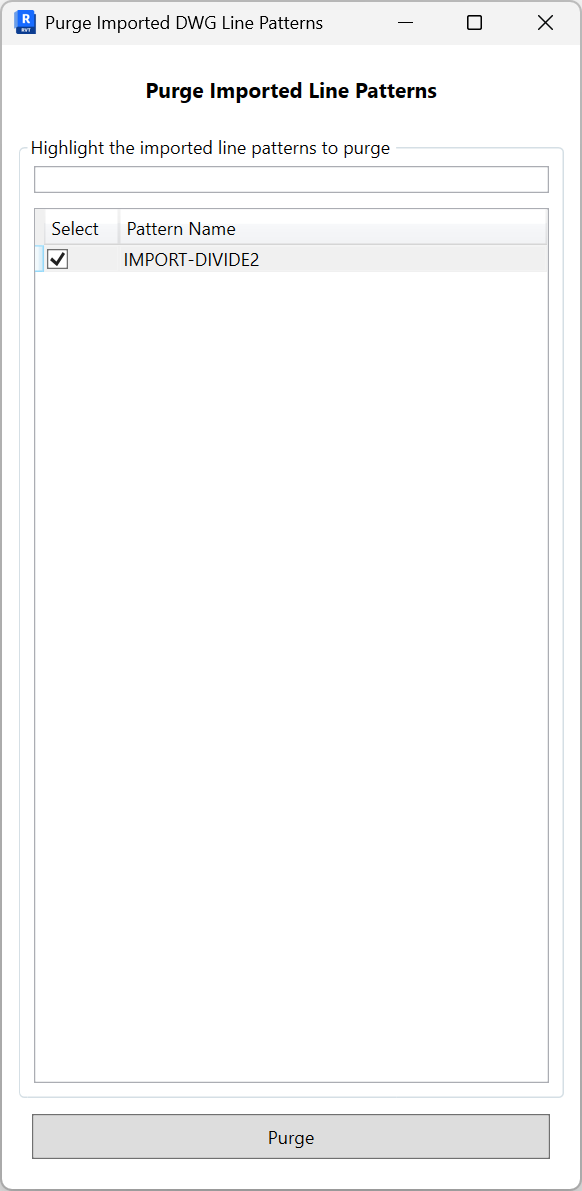
Remove line patterns that were imported from DWG files to reduce clutter in your project. Use the search to find patterns, select the ones you do not need, then purge.
- Filter. Use the search box to narrow the list by pattern name.
- Select patterns. Check the boxes for the imported patterns you want to delete.
- Purge. Click Purge to remove the selected patterns. The button enables only when at least one pattern is selected.
Notes: Only DWG-imported patterns are shown. Patterns currently referenced by styles or elements may be excluded or require reassignment before purging. Use Revit Undo to revert if needed.