Levels Heads
Toggle which level end shows a head in the active view. Keep this window open and continue interacting with Revit-pan/zoom, change selection, or undo-then run it again as needed.
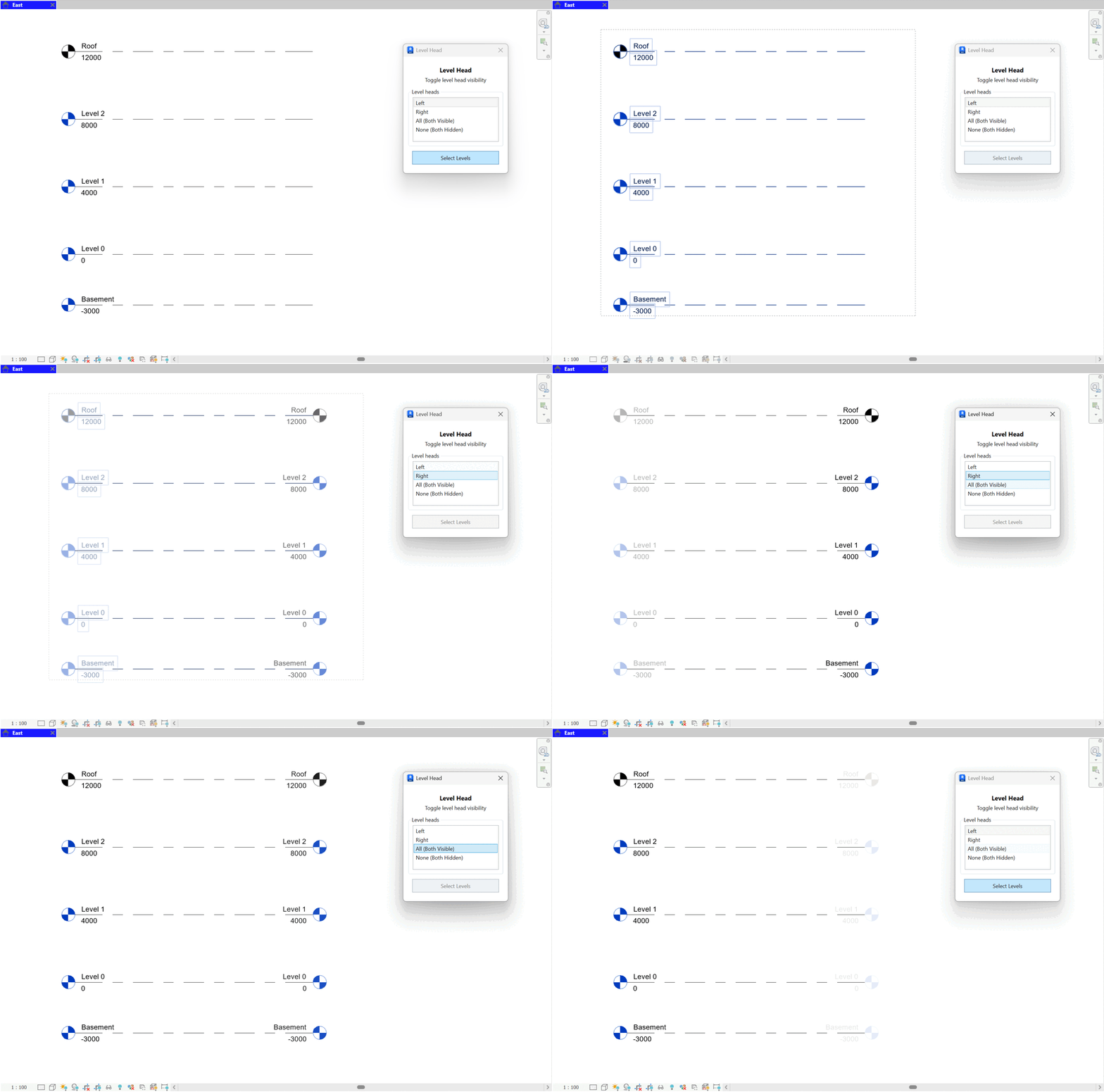
- Pick a head option.
- Left - show the head at the left end.
- Right - show the head at the right end.
- All (Both Visible) - show heads at both ends.
- None (Both Hidden) - hide heads at both ends.
- Select Levels. Click Select Levels and pick the levels to update in the active view.
- Apply. The chosen visibility/position is applied to all selected levels. Use Revit Undo to revert the last change.

Notes: Changes are view-specific and do not move level lines-only end heads. For rotated views, "Left/Right" is interpreted relative to the current view orientation.